📱Mobile-end user-operated start-up Cheng
This course will guide how you access and connect through the Web3 wallet (as in TokenPocket)SHY POINTS (Sorigin-AL-specific points)User-operated platform。
🟢Phase 1: Search for and access to platforms in wallets(图 01 – 图 04)
-
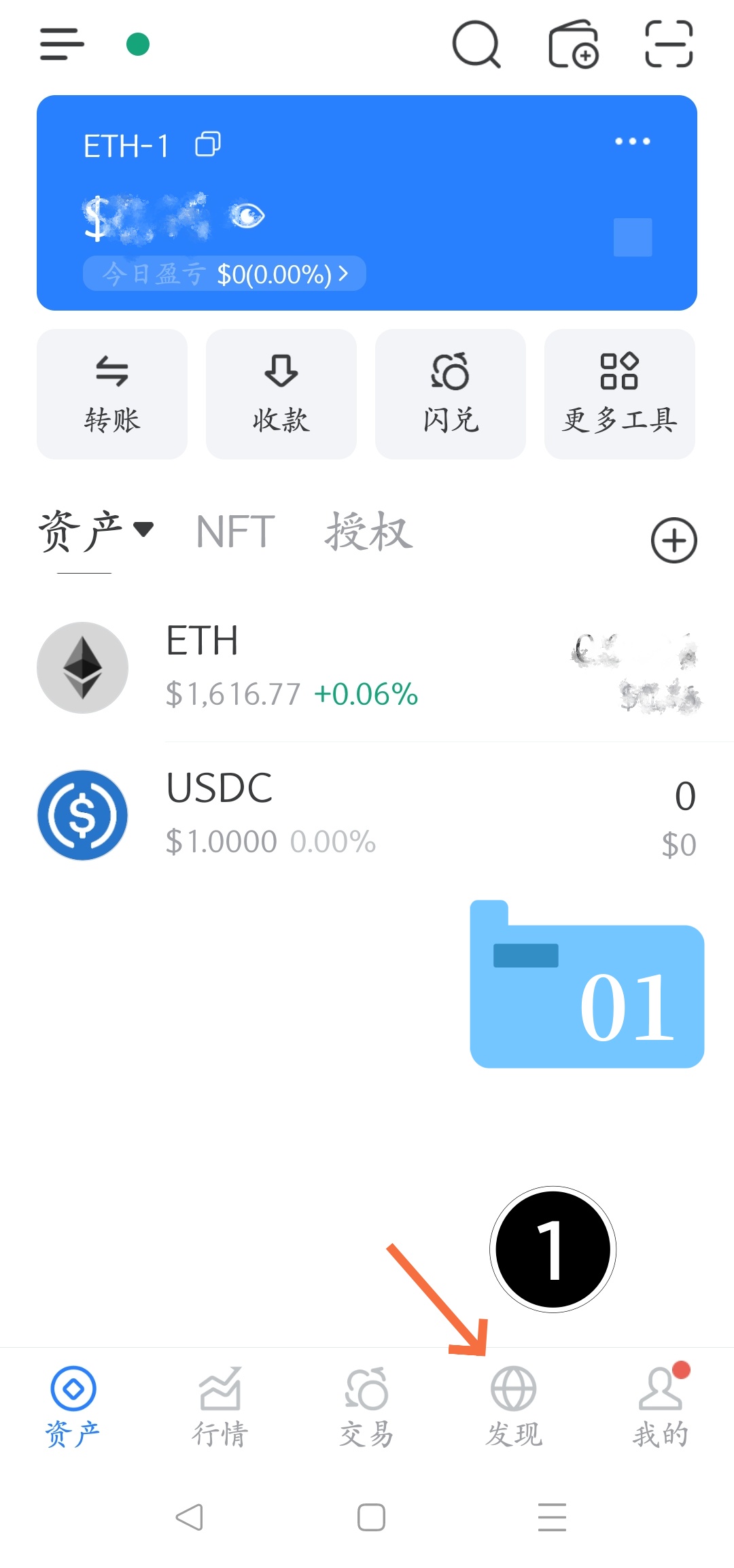
Step 1: Open the “discovery” function of the wallet (corresponding to figure 1)
-
OPENS YOUR ENCRYPTED CURRENCY WALLET APPLICATION (THE HOME PAGE SHOWS ASSETS SUCH AS ETH, USDC, ETC.)。
-
Click on the bottom navigator to the second number on the rightDiscoveryicon。
-
-
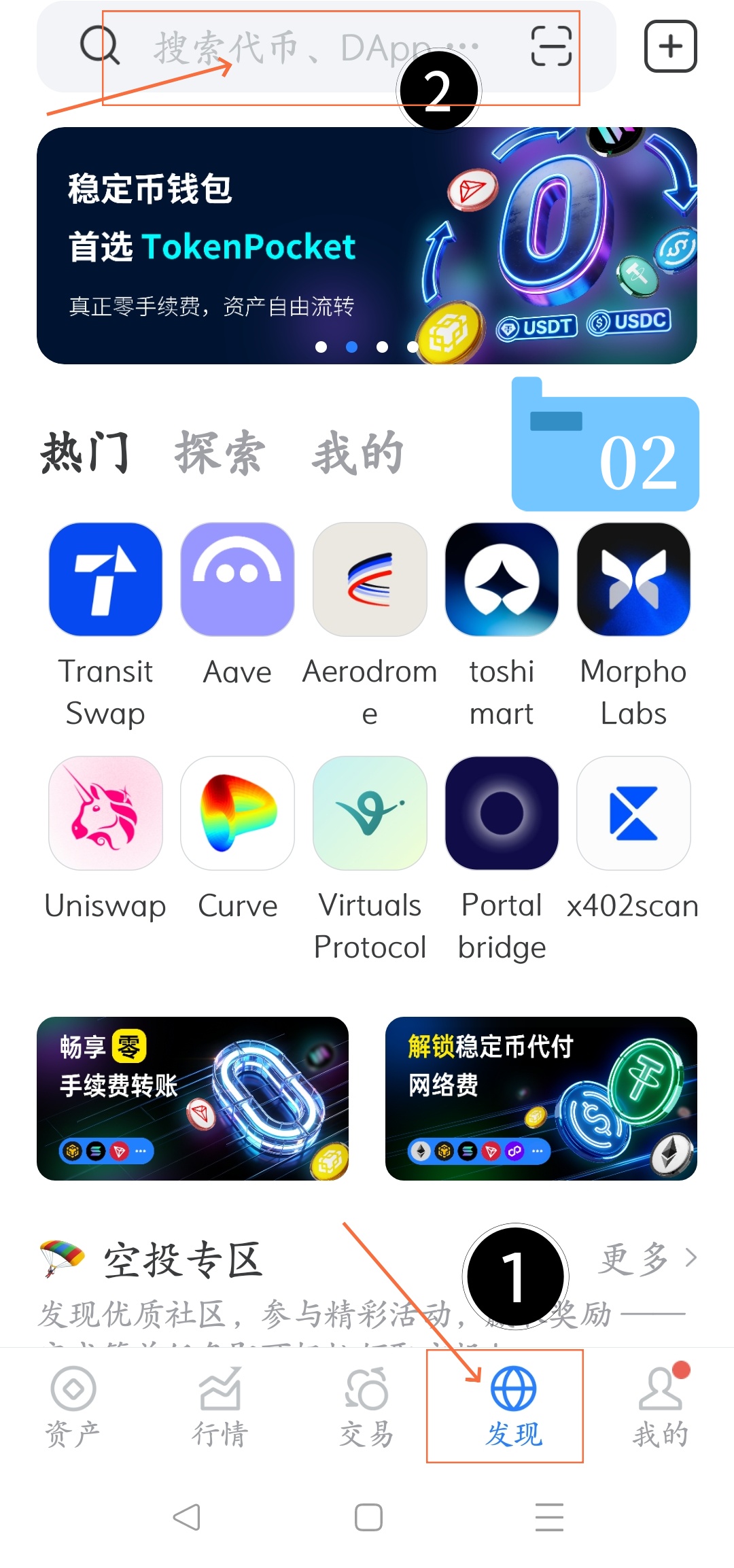
Step 2: Enter the search bar (corresponding to Figure 2)
-
At the top of the search box, click in. The region usually suggests "search tokens, DApp..."。
-
-
Step 3: Enter the target web site (corresponding to figure 3)
-
Enter the address of the third-party website to which the visit is made accurately at the top。
-
You can enter an official link, for example:
[ https://shypoints.online ]or its subpage[ https://shypoints.online/pages/exchange/ ]。 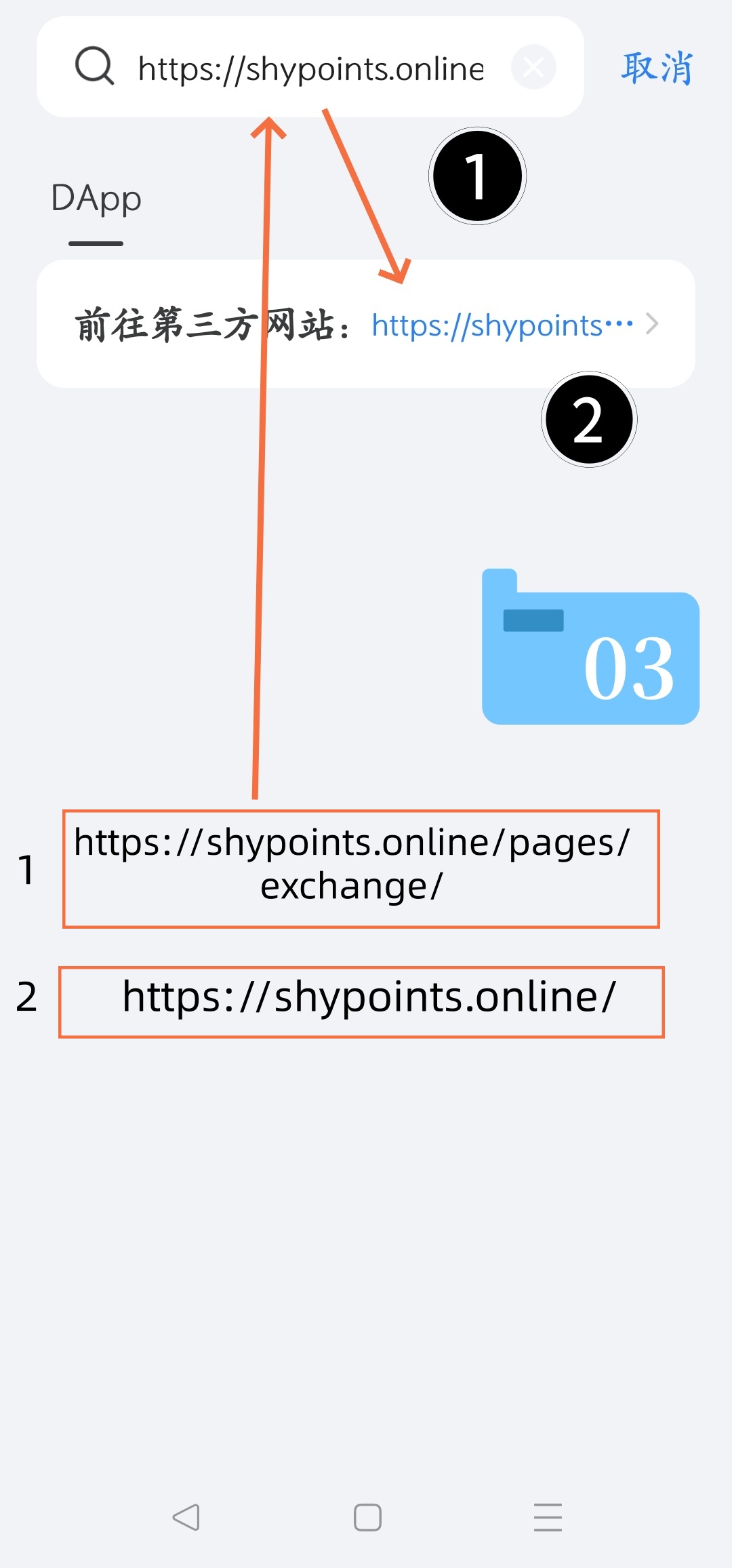
-
-
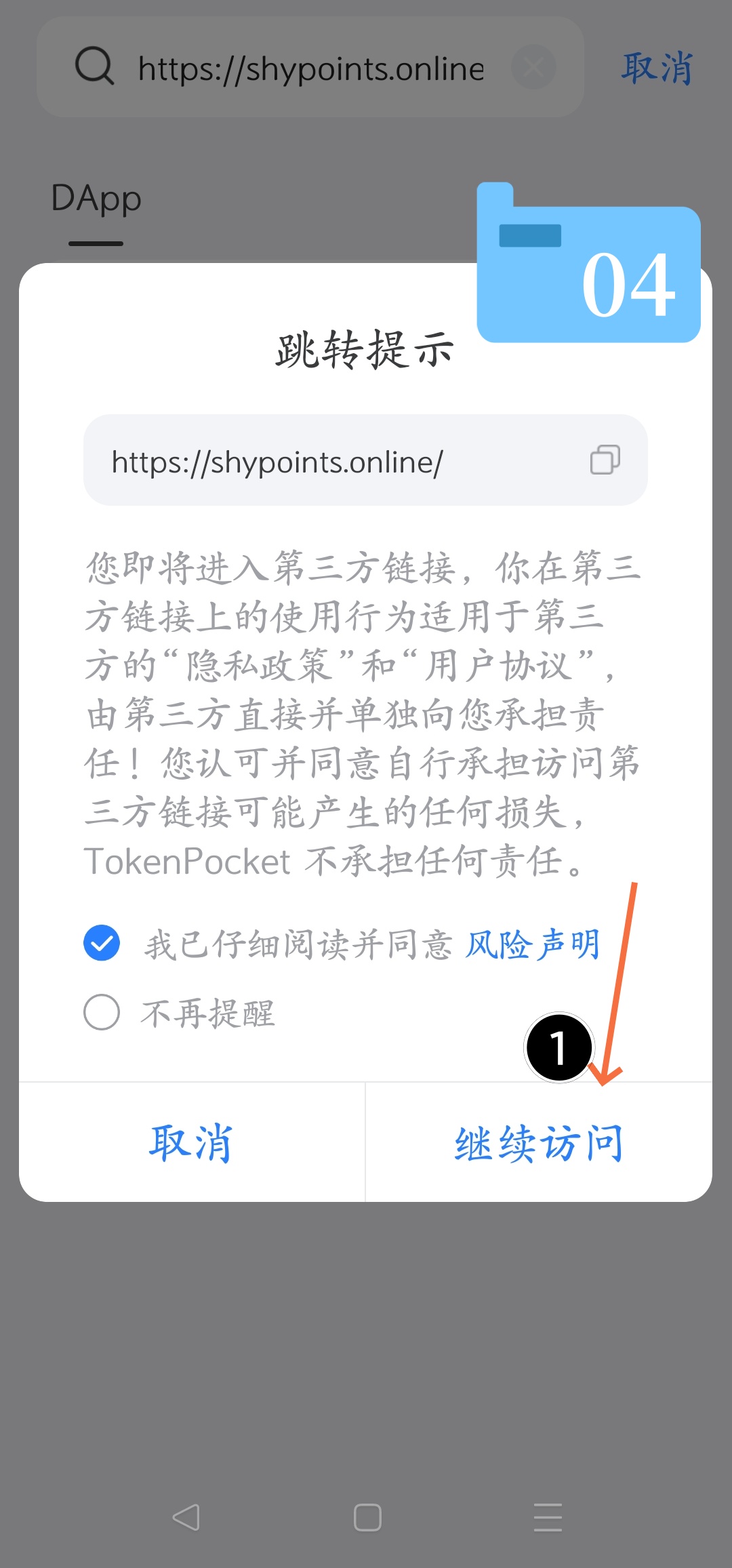
Step 4: Identify and continue (corresponding figure 04)
-
The system will eject the Jumper Tip to remind you that you are entering a third-party link。
-
Check"I have carefully read and agreed to a risk statement."。
-
Click on the bottom right corner"The visit continues."button。
-
🔵Phase 2: Platform functionality and wallet connections (图 05 – 图 07)
-
STEP 5: ENTER THE SHY POINTS FRONT PAGE (CORRESPONDING FIGURE 05)
-
When loaded successfully, you will seeSHY POINTS (AL-SPECIFIC POINTS)Official page showing the "Digital Artificial Life Technologies Exclusive Consumption Point System"。
-
This is when the bottom page receives a hint that the wallet has been pulled up and attempts to establish a connection (e.g.:
ETH-1 已连接)。 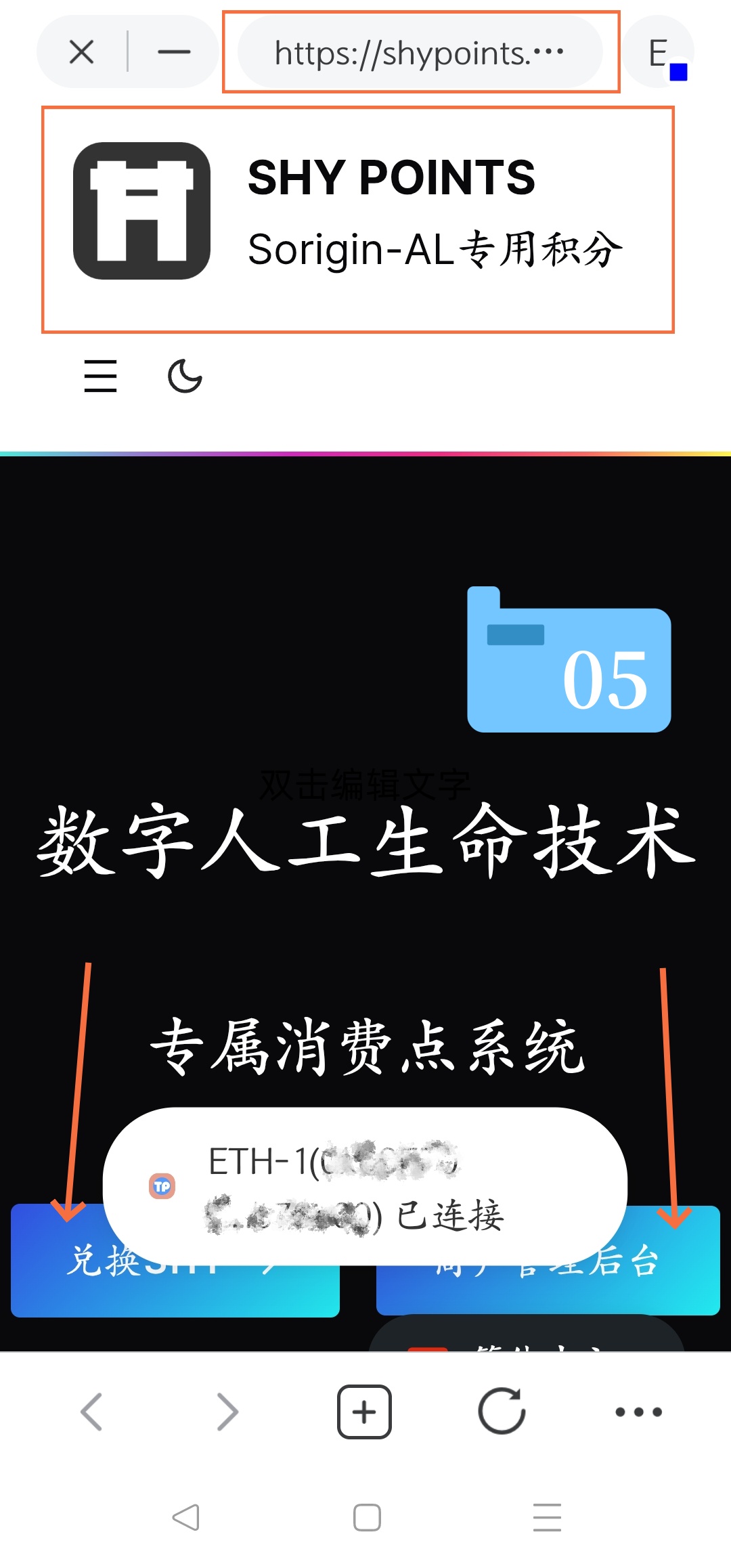
-
-
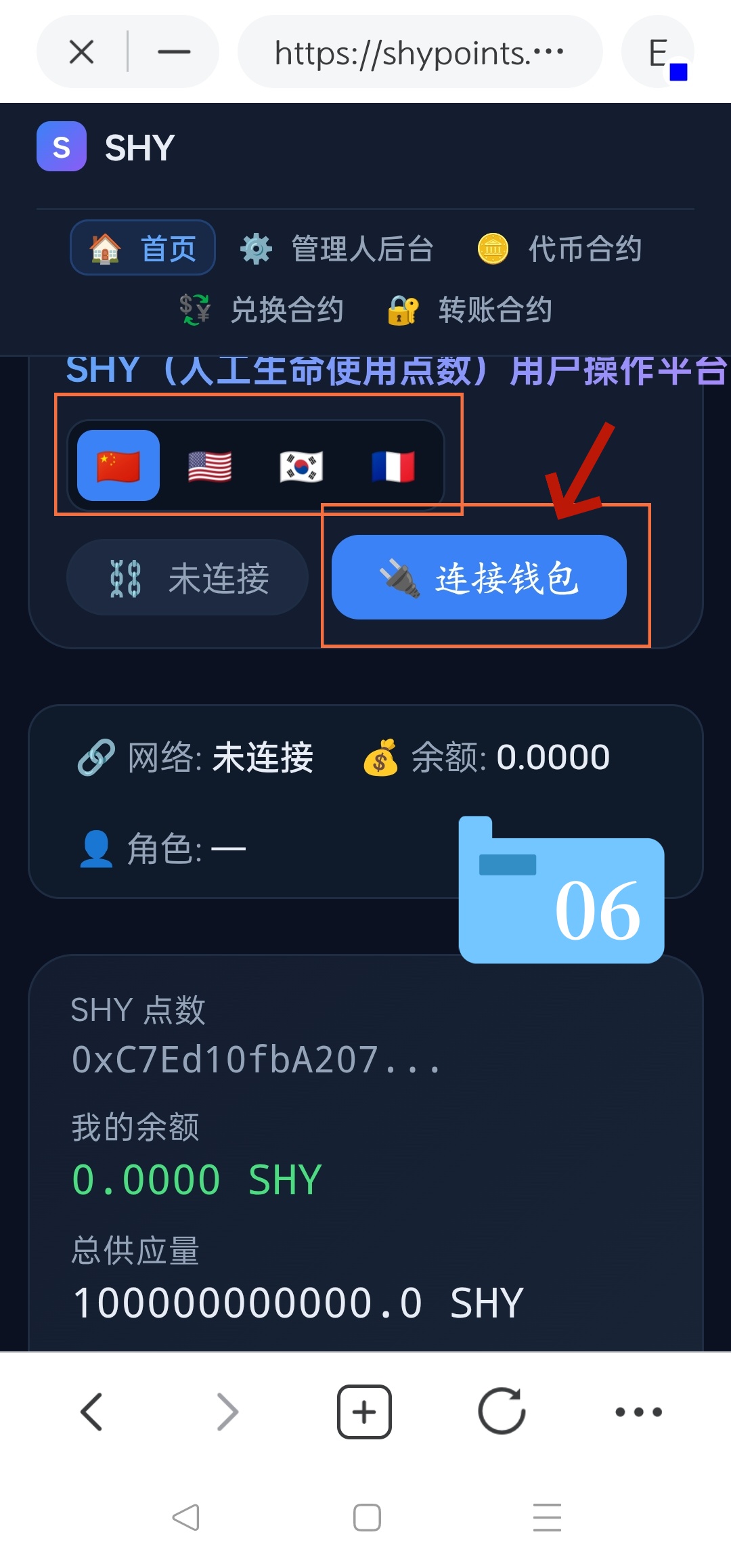
Step 6: Manually connected wallet (corresponding figure 6)
-
ENTER THE "SHY (MANUAL LIFE SCORES) USER OPERATING PLATFORM" MAIN INTERFACE。
-
At the bottom of the language flag selection column, the status is shown as " not connected " 。
-
Click Blue"The Wallet of Linkage"button。
-
-
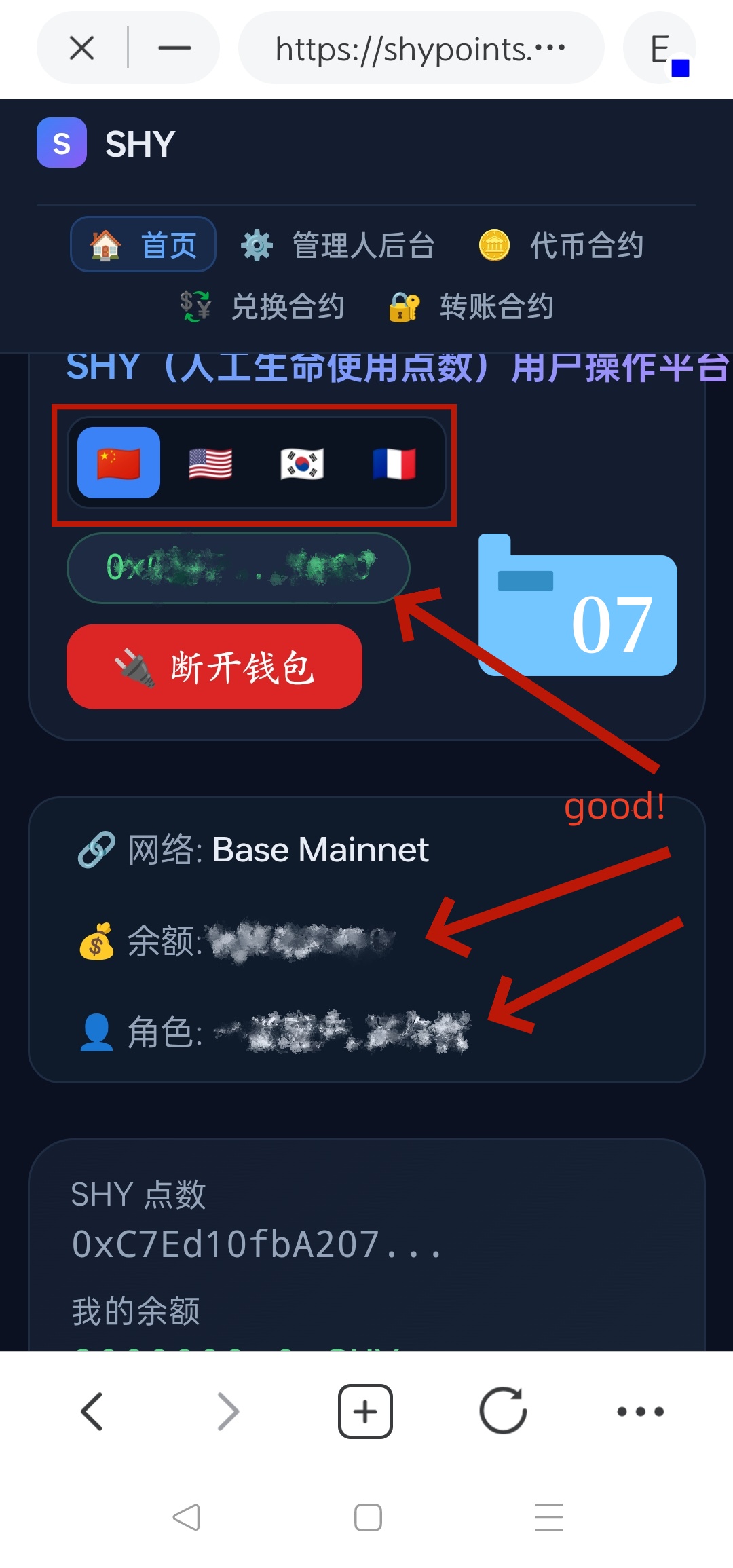
Step 7: Connection success and information reconciliation (figure 07 response)
-
When the connection works, one blue button turns red"The Wallet."。
-
Below you can view the following key information in real time to ensure that it is loaded correctly:
-
Wallet Address: shows the encryption wallet address (0x...) that you are currently connected to。
-
Network: shown as the currently operational block chain network (e.g.:
Base Mainnet)。 -
Balance: Displays the points/currency balances in your current account。
-
Role: Show your role user privileges on the platform。
-
-
💡New hands-on:
-
Make sure you have the right address on your first visit
shypoints.onlineBeware of fishing links。 -
If you do not correctly read " Network " or " Balance " in figure 07, try to refresh the page or check if your wallet network is switched to the correct network (e.g. Base Chain)。