📱 Mobile User Guide: Connecting to SHY POINTS
This tutorial guides you through the process of accessing the SHY POINTS (Sorigin-AL Dedicated Points) platform using a Web3 wallet (such as TokenPocket) on your mobile device.
🟢 Phase 1: Accessing the DApp via the Wallet (Images 01 – 04)
-
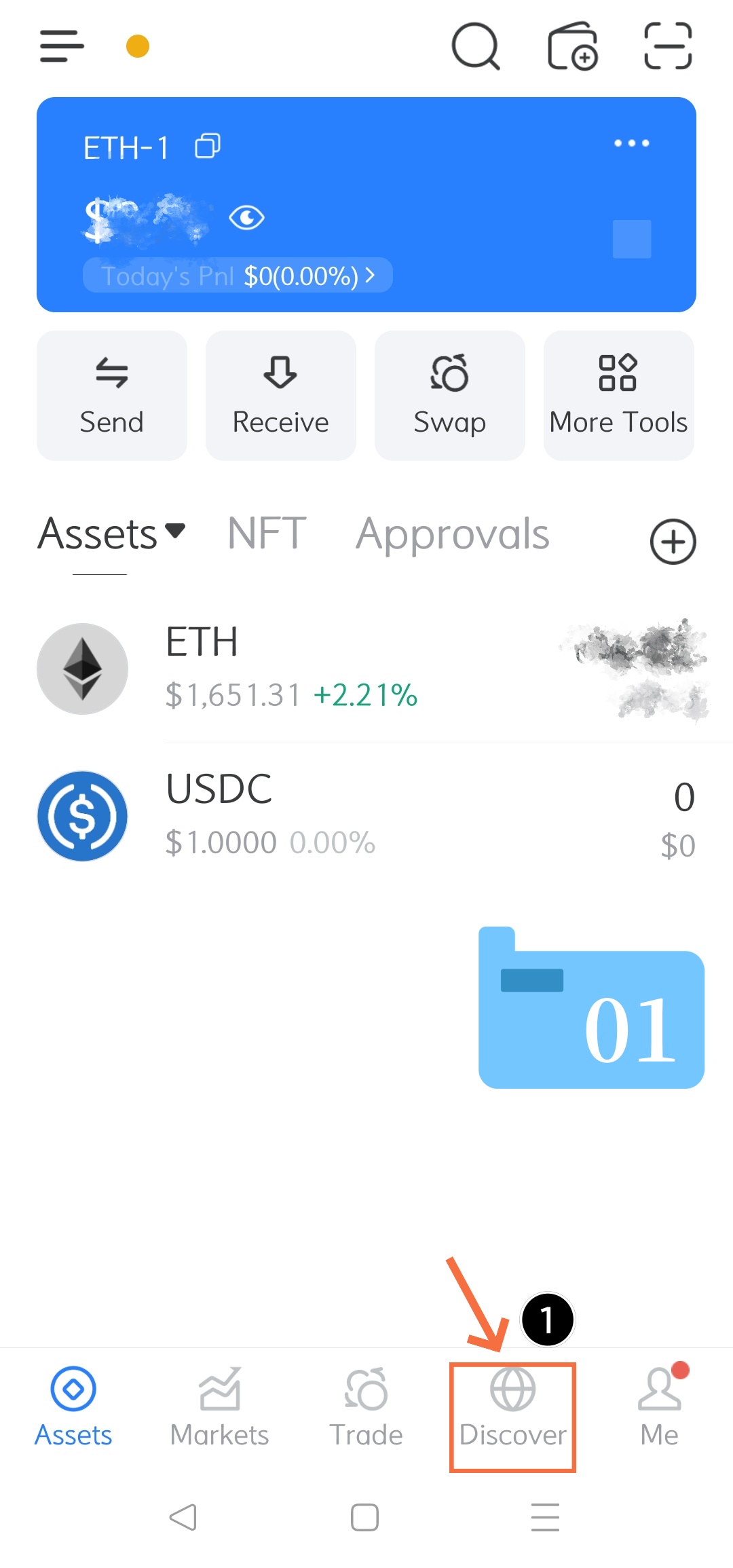
Step 1: Open the DApp Browser (Refer to Image 01)
-
Launch your crypto wallet application.
-
Tap the “Discover” icon (represented by a globe/network logo) located on the bottom navigation bar.
-
-
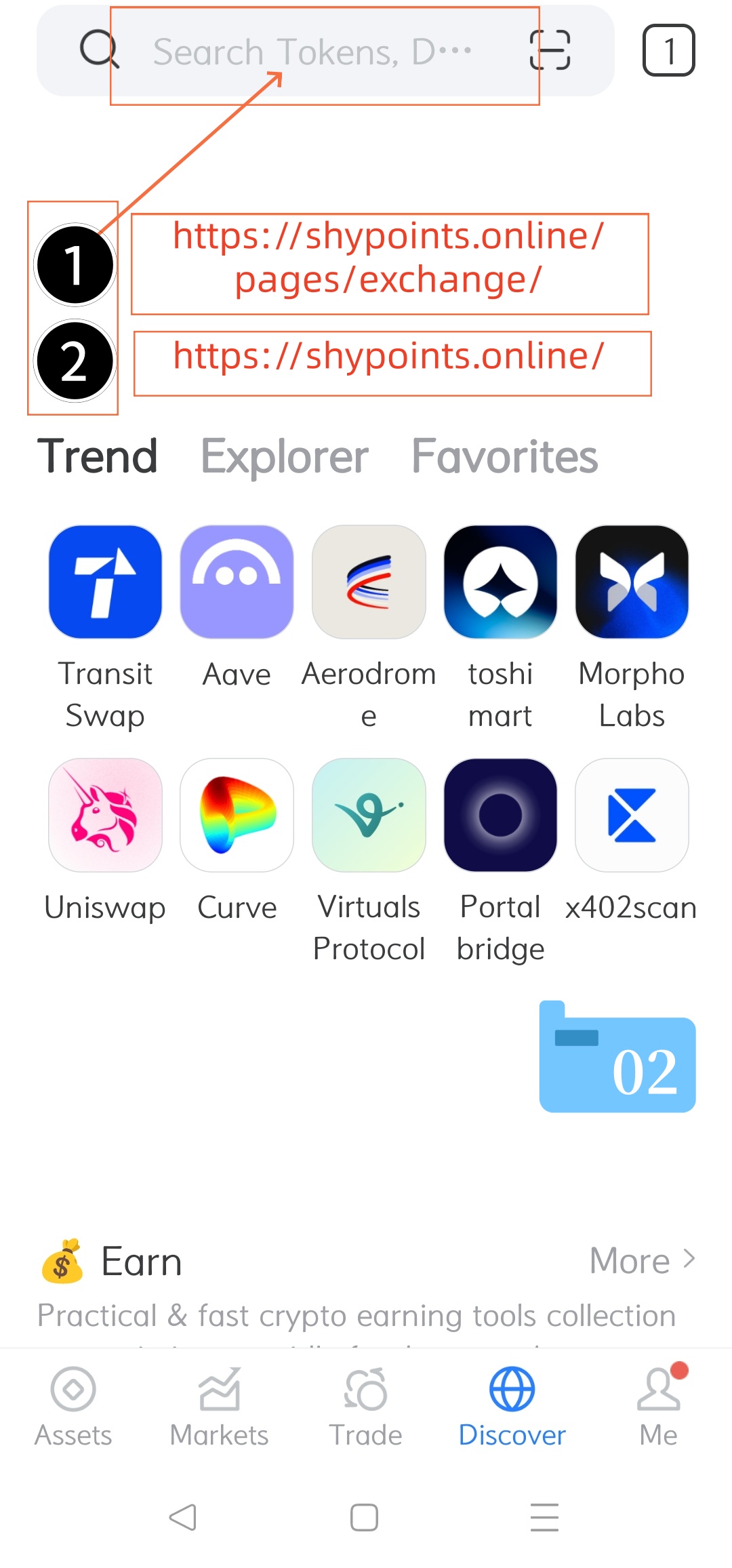
Step 2: Access the Search Bar (Refer to Image 02)
-
Tap the search field at the top of the screen, which displays the placeholder text “Search Tokens, D…”.
-
-
Step 3: Enter the Platform URL (Refer to Image 03)
-
Type the official website address into the URL/search bar.
-
You can input
[ https://shypoints.online ]or navigate directly to the exchange subpage[ https://shypoints.online/pages/exchange/ ]. 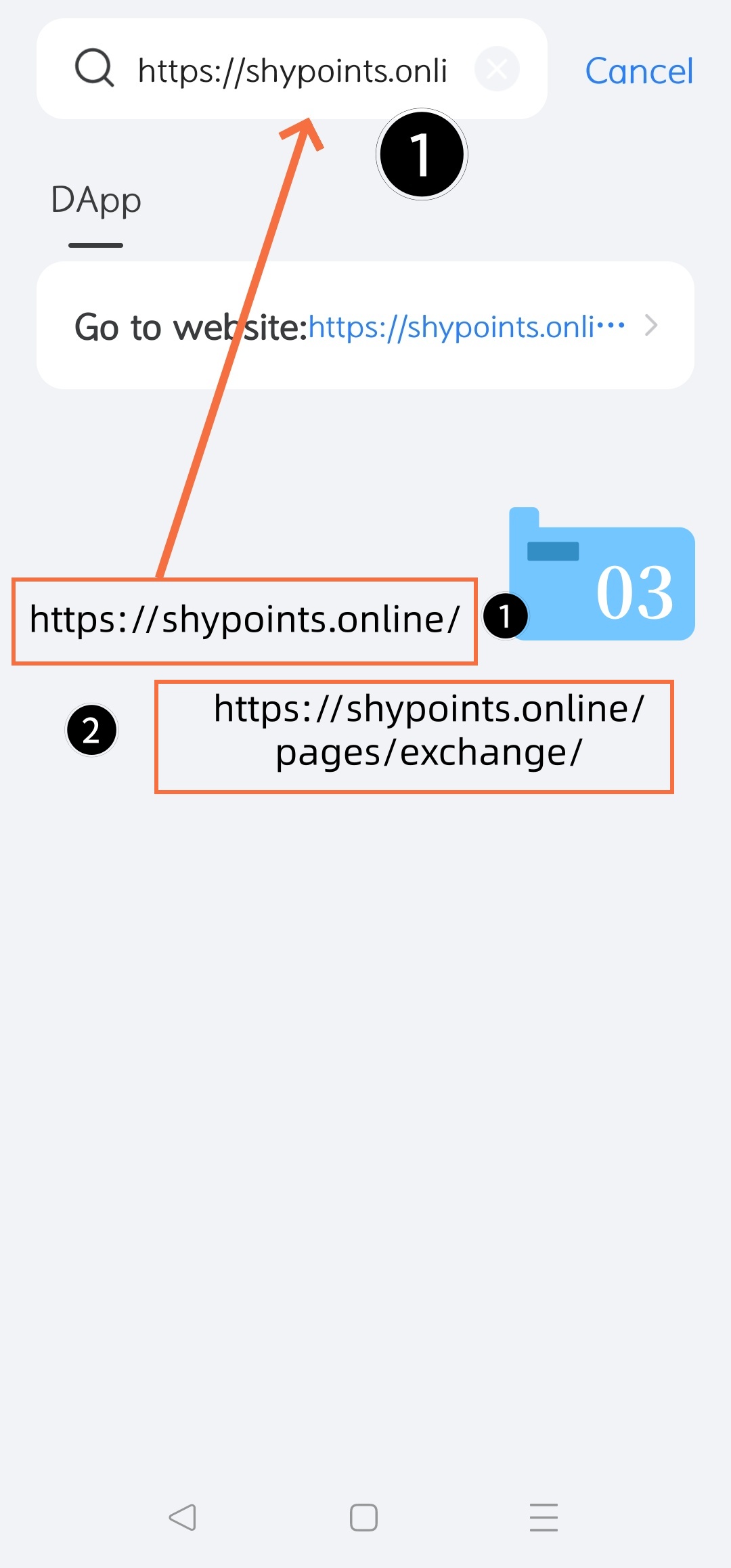
-
-
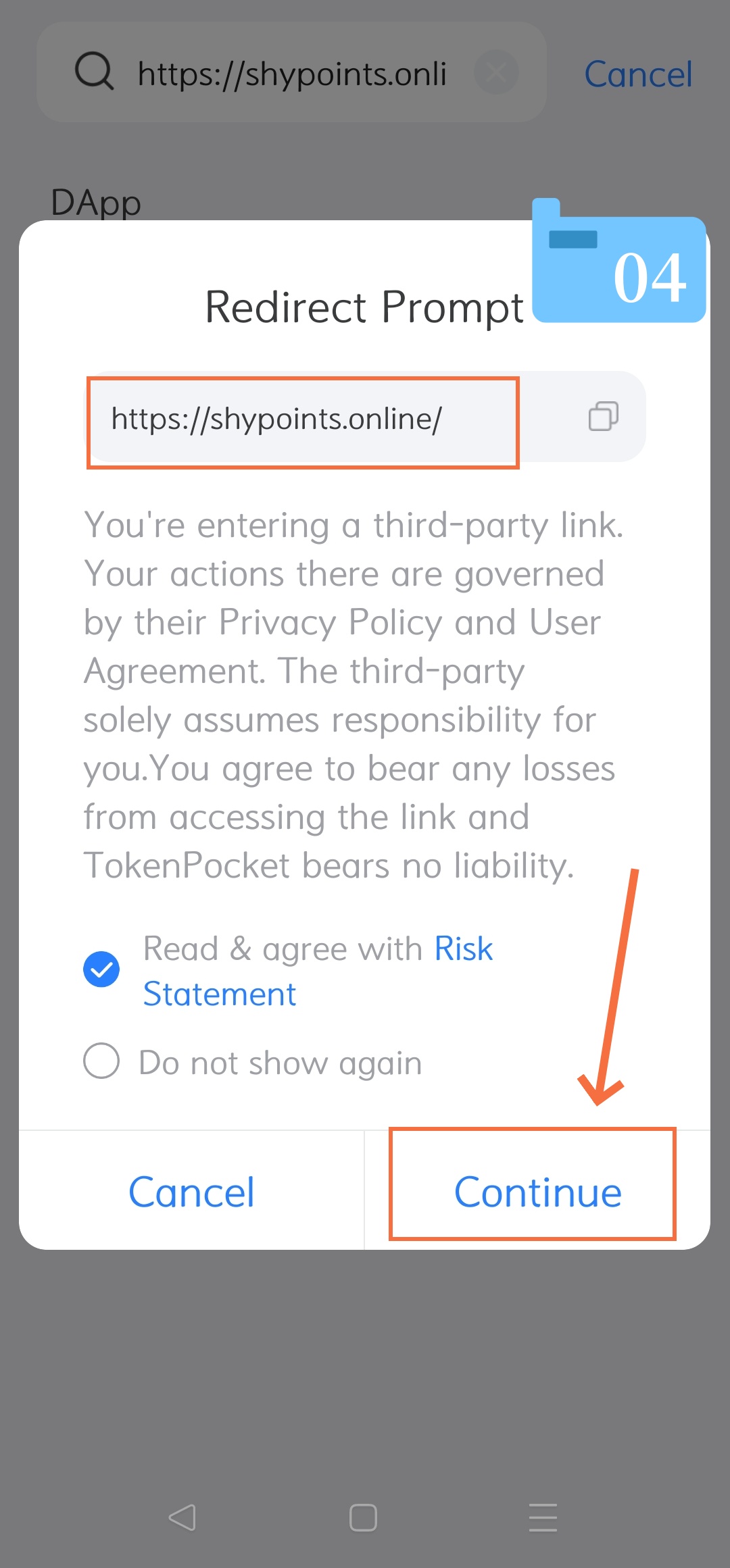
Step 4: Bypass the Redirect Prompt (Refer to Image 04)
-
A “Redirect Prompt” window will pop up to notify you that you are entering a third-party link.
-
Check the box next to “Read & agree with Risk Statement”.
-
Tap the “Continue” button in the bottom right corner to proceed.
-
🔵 Phase 2: Connecting Your Wallet to the Platform (Images 05 – 07)
-
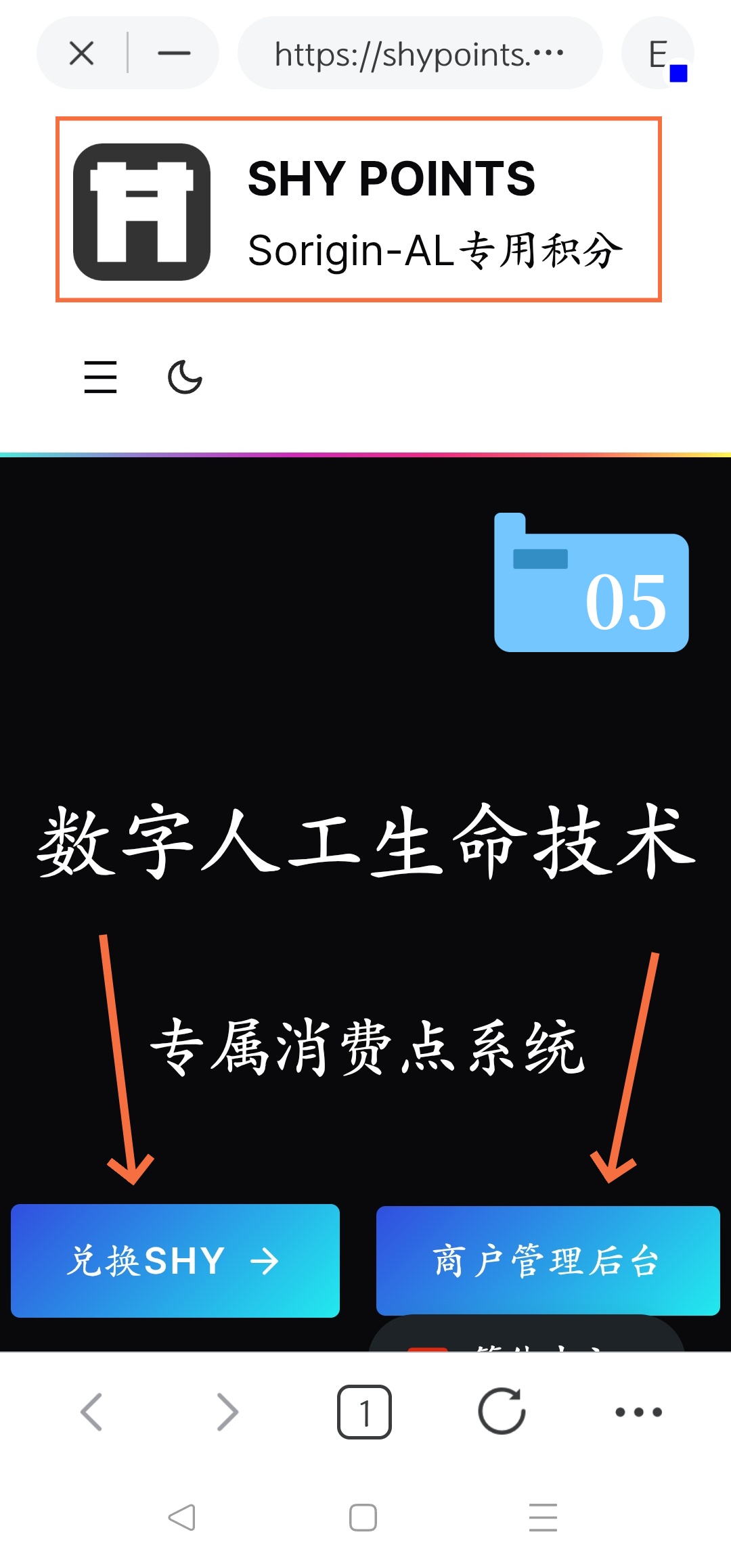
Step 5: Landing on the SHY POINTS Homepage (Refer to Image 05)
-
Once loaded, the official SHY POINTS interface will appear, showcasing the “Digital Artificial Life Technology Exclusive Consumption Points System.”
-
Your mobile wallet will automatically prepare a secure connection backdrop for the site.
-
-
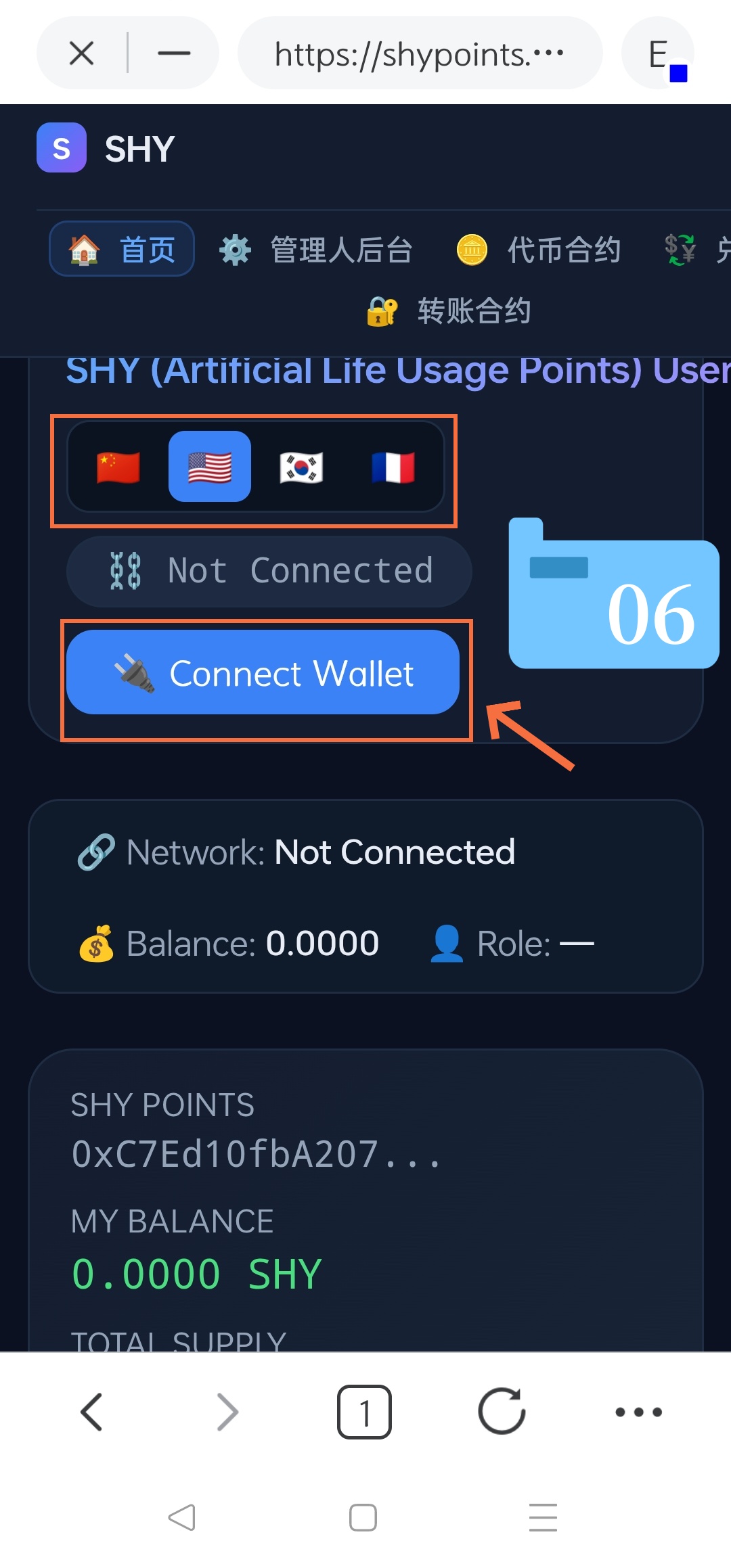
Step 6: Manually Connect Your Wallet (Refer to Image 06)
-
On the “SHY (Artificial Life Usage Points) User Operation Platform” dashboard, notice that the connection status initially says “Not Connected”.
-
Tap the blue “🔌 Connect Wallet” button.
-
-
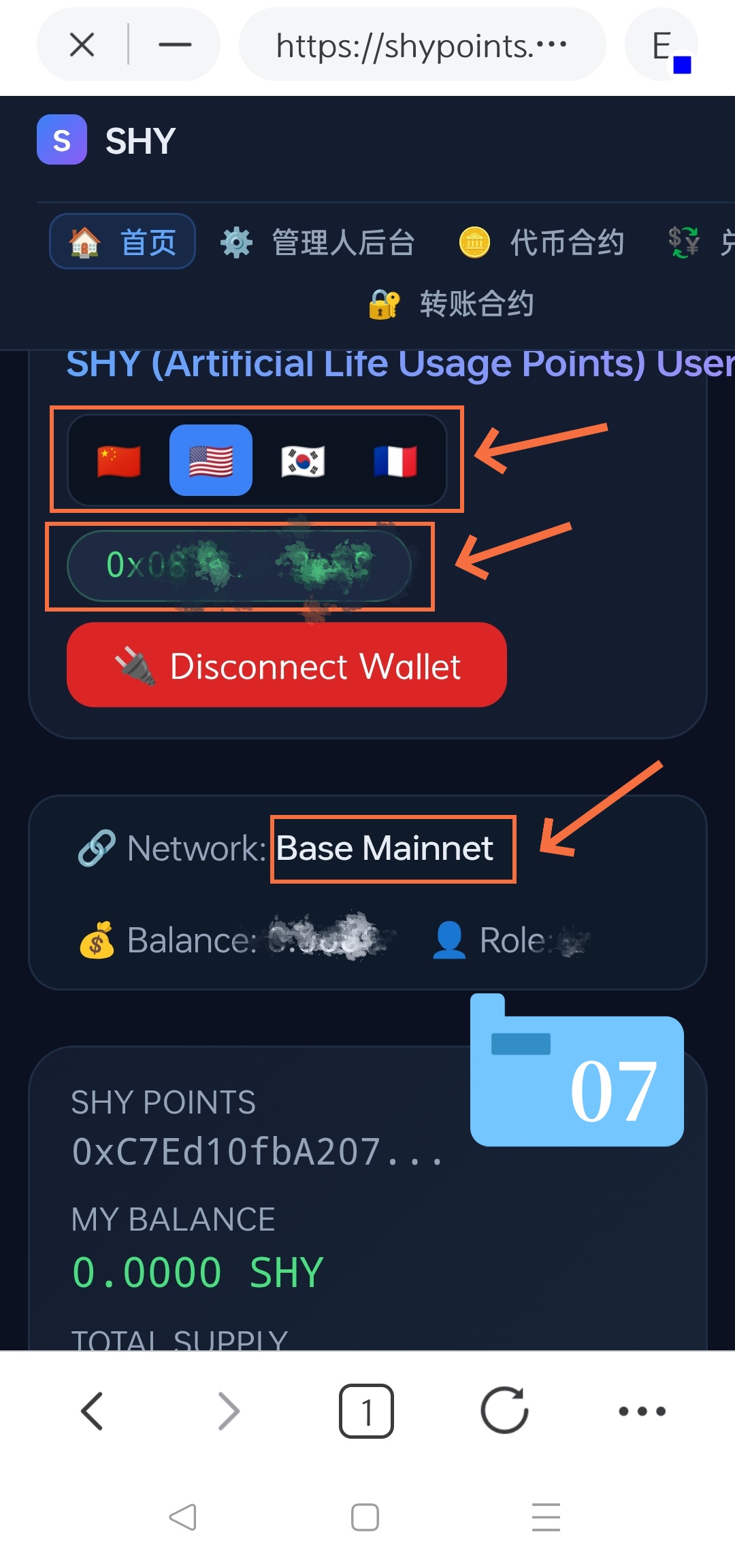
Step 7: Verify Successful Connection (Refer to Image 07)
-
Once successfully linked, the blue button will switch to a red “🔌 Disconnect Wallet” button.
-
Verify your real-time account parameters listed below it:
-
Language Selection: Choose your preferred language flag at the top if needed.
-
Wallet Address: Displays your connected crypto address (0x…).
-
Network: Confirms the active blockchain network (e.g., Base Mainnet).
-
Balance: Displays your available SHY points/token balance.
-
Role: Displays your authorized user role/tier within the system.
-
-
💡 Quick Tips for Beginners:
-
Security Check: Always verify that the address bar displays
shypoints.onlineto protect yourself against phishing attempts. -
Network Issues: If your balance or network status fails to load properly in Step 7, ensure that your wallet’s main network is manually switched to the Base Mainnet and refresh the page.